Chat on WhatsApp PowerPoint Course - JMD Study

PowerPoint Course

Rated 5 out of 5
  • Create a fully-animated and transition-filled business presentation
  • Minimize text quantity on presentations by using graphs and images
  • Rapidly improve your workflow and design skills
  • Learn PowerPoint from beginner to an advanced level
Training Format
Online Training / Classroom

Upgrade Your Skill In Android
20000+ Professional Trained | 500+ Batches

100% Practical PowerPoint in Jaipur With Certification & Placement Assistance

Description


5 Latest Updates to the course content:

Mar 2025 – NEW SECTION – Charts & Data Visualization

Feb 2025 – NEW SECTION – Microsoft Copilot in PowerPoint for 2025

Jan 2025 – Design Trends 2025

Sep 2024 – Might Alt, Shift & CTRL lecture improvements for MAC

Sep 2024 – NEW SECTION – Accessibility


JOIN OVER 128,300 STUDENTS WHO ARE LEARNING HOW TO CREATE OUTSTANDING POWERPOINT PRESENTATIONS AND TEMPLATES FROM AN EXPERIENCED DESIGNER

Do you want to learn how to use MASTER SLIDES to create Templates?

Do you want to SAVE TIME working in PowerPoint and be more efficient?

Do you struggle to create EYE-CATCHING, well-designed presentations?

Learn how to coordinate the DESIGN of your presentation with your speaking skills!


This course solves these problems and teaches you valuable Microsoft PowerPoint 365 tricks beyond that. You can use PowerPoint 2021, PowerPoint 2019, PowerPoint 2016, or even 2010 or 2013, but newer versions like the subscription based Microsoft365 are recommended.


The course is divided into four comprehensive chapters to make it easy to follow:

ESSENTIAL KNOWLEDGE – Best presentation practices and useful PowerPoint tricks, including presentation tips you might not know.

SLIDE DESIGN – Learn the slide-by-slide process of how to design your presentation. Each lesson is devoted to tackling one slide at a time. Follow along and create your masterpiece just like the one in the preview. PowerPoint 2010 and PowerPoint 2011 MAC tricks also apply.

MASTER SLIDES – Learn how to set up, prepare, and create templates in the PowerPoint Slide Master window to create high-quality presentations for companies, clients, and online sales!

ADVANCED TRICKS – Learn from dozens of high-quality lessons that teach you important PowerPoint tricks such as setting up the music, video backgrounds, global changes, and more.


With the help of this course, you will:

Increase your Microsoft PowerPoint knowledge

Improve your workflow and design skills

Learn to make custom layouts with placeholders on slide master slides

Get a new 14-slide PowerPoint 2013 / 2016 / 2019 / 2021 / PowerPoint 365 presentation template to use

Reduce the time you need to complete a high-quality presentation

Learn PowerPoint 2013, PowerPoint 2016, PowerPoint 2019 / 2021 (and the older versions) in one comprehensive course

Be able to brand and build templates for you, your company, or your clients!


The focus of this course is the design process and template creation. I will take you by the hand through the process of creating an outstanding presentation. We will design using PowerPoint and make infographics, world maps, graphs, charts, features, processes, introductions about our slides, and many things that are important to a well-prepared presentation. Whether you’re looking to give a monthly report or impress prospective clients with your PowerPoint designs, learning the shortcuts and how to build unique themes is essential for crafting engaging and informative presentations.


I’m a very active instructor and respond to questions within 48 hours. All questions in my course are addressed and we work with students together to find solutions for their problems or at least the best possible ones out there 🙂 Learn Microsoft PowerPoint with me and don’t look back!


Frequently Asked Questions (FAQ):

Q: I’m a total beginner in PowerPoint, is this course right for me?

This course will teach you all the basics and advanced tools, but it’s not PowerPoint 101 for beginners. I mention basic tools and techniques, but I assume you are computer savvy and know how to find your way around PowerPoint already. BUT! If you aren’t then I have prepared a completely FREE PowerPoint basics course, which will equip you with the knowledge necessary to take this one. It’s available on my profile under free courses. It’s called PowerPoint for Beginners – Program & Animation Basics FREE

Q: I’m enrolled in your PowerPoint Masterclass – Presentation Design & Animation course. Should I get this one or is the other one enough? Which one is better?

Good Question! Both courses are top PowerPoint courses that teach you the knowledge and tools to create outstanding presentations, animations, and templates. They are just two different versions that use different slides and unique content respectively. The benefit of that is you can follow a different design path on each course. Students who finished the first master’s course were asking me for more, and I’m happy to provide more if there is demand for it. If you already feel super comfortable with PowerPoint, one course is enough. But if you seek even more design ideas and slides, and if you like my content and the way I teach, you won’t go wrong by taking both courses. Each of those two courses has several unique sections that allow them to expand their knowledge in their way.

Q: I’ve been using PowerPoint for 15+ years and think I know it already. Will I learn anything new?

I’m an experienced PowerPoint instructor with over 250 YouTube tutorials and more than 10 published PowerPoint courses and series. Over the past few years, I have learned from both beginner and advanced students which areas to address to best influence your workflow in a positive and impactful way. My courses help you to boost your efficiency, using shortcuts and on-trend designs to help you reach a modern, top-level standard of quality. If you need something that is not already in the course, you can always ask me about topics to add to courses that interest you.

Q: I’m still not sure if I want to invest in this course. I don’t know if I want to focus on design or animation. Is there any fall-back plan?

Of course! First, you should watch the promo videos and watch the free preview lessons. They will give you a good understanding of the course content, pace, and what to expect from taking the course. Apart from that, you have Udemy’s 30-day Money Back Guarantee with no questions asked!


Stop waiting days to get your presentation back from a designer or from your co-workers. Instead, take your presentation into your own hands with this PowerPoint 2016, PowerPoint 2019, and PowerPoint 365 course. Don’t wait to sign up. ENROLL NOW!


Who this course is for:
People who want to save time and enhance their PowerPoint skills
Business people, teachers, students or designers wanting to create outstanding slides
People who want to learn how to animate and build engaging presentations and templates
Entrepreneurs who want to create, sell, or promote with help of animated presentations and videos

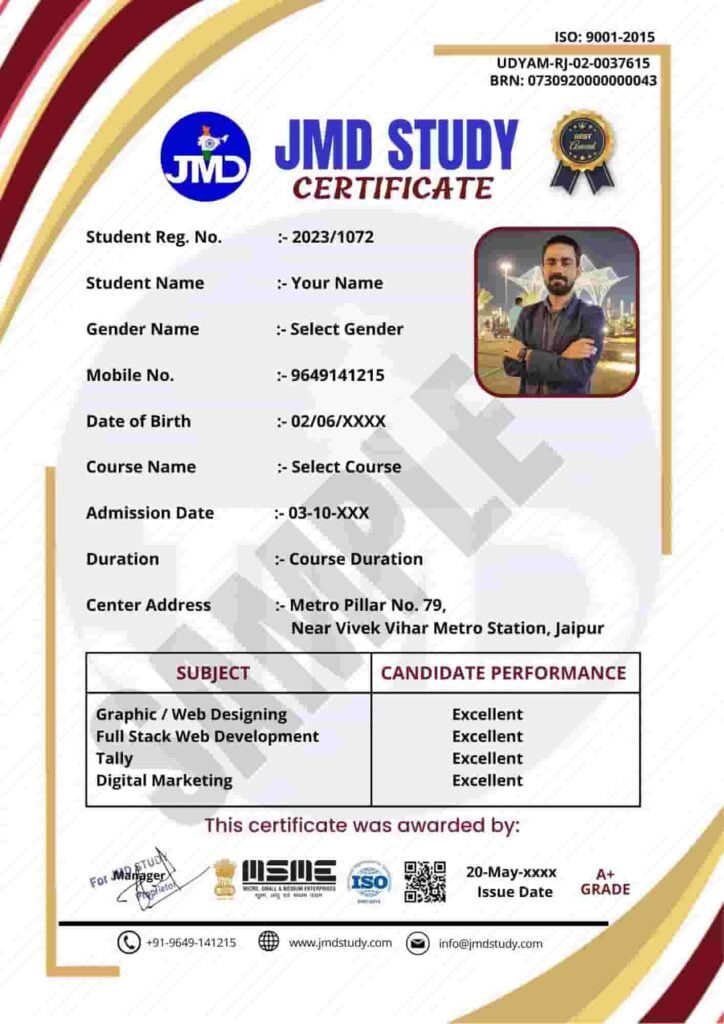
JMD Certificate
  • Introduction and Who Am I ?
    Resources for download
  • The Mighty SHIFT CTRL and ALT
  • Format Shape
  • My favorite tool – Format Painter
  • PowerPoint Versions
  • Quick Access Toolbar
  • Edit Points – Advanced Tip
  • Selecting the Color Scheme (Concept)
  • Selecting the Fonts (Typography)
  • Less is more
  • Less is more outplayed – Presenter View!
  • Adding a Vector File
  • Design Trends & Accessibility
  • Quick Roundup. Do you remember?
  • How to Use this Course
  • Slide 1. Title
  • Bonus – Perfect Alignment Every Time
  • Slide 2. About Us
  • Slide 3. 6 Features
  • Slide 3. Shape Connectors
  • Design the first 3 slides
  • 2 questions
  • Animation Basics
  • Slide 1, 2 – Animation
  • Slide 3 – Animation
  • Slide 4. 4 Steps
  • Slide 5 & 6. Timeline
  • Transition Basics
  • Slide 5 & 6. Timeline – Animation
  • Slide 7. World Map
  • Slide 8. Country Map
  • Custom Format Shape Options
  • Slide 9. Graph like a boss
  • Slide 9. Graph like a boss – Animation
  • Slide 10. Filter Charts option
  • Slide 11. Contact Us
  • Slide 12. Resources
  • Slide 13. Thank You
  • Do You recall? 3 Quick Questions
  • Sections
  • Adding background music
  • Embedding Fonts
  • 3 global changes
  • Reduce Presentation size
  • Exporting to PDF
  • Ways of creating templates
  • Master Slides
  • Layouts
  • XML files – Usage and Importing
  • THMX files – What They Are
  • How do Color Schemes in PowerPoint work
  • Creating a Layout – Pros and Cons
  • Creating a Layout – Advanced Usage
  • Designing Templates – Multiply Layouts
  • Custom Bulletpoint Lists
  • Summary
  • Introduction
  • How to Design With Me
  • Slide 1. Picture Layout
  • Slide 1. Welcome
  • Slide 2. Key Products
  • Slide 2. Key Products (Design)
  • Slide 3. Infographic
  • Slide 3. Infographic (Shortcut Magic)
  • Slide 4. Chart Design
  • Slide 4. Chart Design (Part 2)
  • Slide 5. Chart Design 2
  • Slide 6. Contact Us
  • Grouping
  • Slide 1. Welcome
  • Animation Pane
  • Slide 2. Key Products
  • Slide 3. Infographic
  • Slide 4. Chart 1
  • Bonus – Morph feature
  • Animate Chart series separately
  • Slide 6. Contact Us
  • Print-out vs Live Presenting
  • Adding relevant elements
  • Presenting a presentation
  • Pen Tool
  • Cameo – Live Camera Feed in PowerPoint
  • Speaker Notes
  • Bonus – Sharing Presentation via OneDrive
  • Chart Basics
  • PowerPoint Chart Features
  • Column Chart – Features
  • Column Chart – Formatting Data Labels
  • Column Chart – Adding Custom Elements
  • Line Chart – Advanced PowerPoint Charting
  • Line Chart – Customization and Design
  • Action Titles and Making Charts Understandable
  • Animation of a Chart in PowerPoint
  • Business Presentations & Data Visualization
  • Creating Presentations with Microsoft Copilot
  • Copilot Narrative Builder and AI Presentation Editing
  • Custom Templates with Microsoft Copilot for AI presentations
  • 04. Microsoft Copilot in PowerPoint course
  • Microsoft Copilot Course
  • Introduction and Important notice
  • ZOOM – Features
  • MORPH – What is it
  • ZOOM – Practical Example
  • ZOOM – Why is it a game changer
  • MORPH – Example and usage
  • MORPH – New “!!” Feature is another Game Changer
  • MORPH – Zoom Into Parts of Your Slide
  • Conclusion – What is better
  • 3D Basics – Rotation
  • 3D Basics – Format
  • 3D Basics – Light and Material
  • Chart with Icons into Perspective
  • Types of Tables
  • Native Table Design
  • Table Layout – Add and Edit Cells
  • Using the Pen and Eraser
  • Importing EXCEL data
  • Bonus – Live Linking EXCEL data
  • Designing a table Pt. 1
  • Designing a table Pt. 2
  • Final adjustments
  • Introduction
  • Switch Attention
  • Organize Layout
  • Make data cohesive and understandable
  • Expressing Large Data on Tables
  • Working with Inserted Picture Data
  • Utilizing Office 365 ZOOM Feature
  • BONUS: Organization Chart with Smart Art
  • Summary
  • Vector vs Bitmap
  • Using vector files in PowerPoint – WOW!
  • MAC Users – If You can use the 365 version
  • Converting with Illustrator
  • Converting with InkScape
  • Converting with Cloudconvert
  • W3.org
  • Accessibility Basics
  • Subtitles – Automated subtitles and translations
  • Reading Order and Alt Text
  • Contrast Checker
  • Checking contrast online
  • Color Blind Safe
  • The #1 Place for inspiration & ideas
  • Try not to use the basic templates
  • Copying Between PowerPoints
  • Insert a screenshot properly into PowerPoint
  • Remove background from pictures
  • Even Out Different Pictures
  • Add Playing Video Backgrounds
  • Advanced Shadow Options
  • Animating series in charts
  • How to Design a Powerpoint Template
  • Minimalistic Icon Template

Introduction to this section
Slide 1: Sliced Image Composition
Slide 2: Four Steps Color Change
Slide 3: Custom Colorful Icons & Image Border
Slide 4: Proper Bulletpoint Usage
Slide 5: Example Organigramme Design
Would you like to share anything you did so far?

Product Roadmap Template
Embed an Interactive Google Map into your PowerPoint presentation
Animating Text Shapes On Charts

You Made It – Congratulations!
Bonus lecture

Download Brochure

Fill in the details, Get the Brochure and Explor


    Application Form


    Prospectus | Eligibility | Fees

    Program Features

    Duration: 30 Days

    Effort: 40 Hours of Learning
    Subject: PowerPoint
    Level: Professional
    Language: English, Hindi

    10% Discount After One-Time Payment

    Course Fees

    Exciting Offer till 15 Dec 2025
    No Cost EMI options available

    Get Trained with a Nominal Registration Fees!

    Why Choose JMD Study as your Training Institute?

    With the best infrastructure and high-tech technology, the project based training allows students and working professionals to gain hands-on experience to Learn Coding Languages.

    • We have 7+ years of experience in Programming language Training.
    • Our Industry expert Teachers are passionate to teach.
    • You’ll be more confident every single day than the day before while learning coding with JMD Study.
    • The Latest Curriculum, from Industry Experts.
    • High Engagement, Outcome-Centric Learning.
    • Placement Assistance for everyone.
    • Life time support for queries & placement.

    Program Features

    35+ Hours for Learning

    50+ Assignment

    10+ Projects

    Certification

    Online / Offline

    Hindi / English

    Who can Learn?

    Entrepreneur

    Gain expertise in operating your business online. Take your business to another level by reaching a large audience. Get your revenue increase by marketing on internet.

    Working Professionals

    Gain high career growth with advanced Software Training skills. Furnish your qualification with an edge over others. Work as a part-time freelancer & make money online.

    Job Seekers

    Learn first, which others will learn later. Great chance to get a great job as India is emerging with Digital Media. Give companies extra reasons to hire you.

    Homemaker

    Work as per the time convenience. Learn Software Training in a very short span of time and start your own online business through digital mediums.

    Batches Options We Have

    We Have Four Options For You to Join Us.

    Regular Batches

    If you're a student and can come on regular basis than you can enroll for a regular batch for any Course which is from Monday to Friday, Five days a week.

    Alternate Batches

    If you think that you need time for practice at home than you can enroll for an alternate any Course batch in which you need to come only 3 Days a week.

    Weekend Batches

    If you're a business owner or professional having time only on Saturdays and Sundays than weekends any batches suit you best. Enroll for weekends batches.

    Sunday Batches

    In case of a busy schedule, we also have a Sunday any Course batch system. However, you need to discuss the timings with our counselors.

    Curriculum

    Designed by Experts Most Advanced Course Contents, Videos & Assignments

    Application Based Learning

    Theory - Hands-on Training - Case Studies - Live Projects

    Mentor Connect

    Get exclusive one on one Instructor Guidance

    Industry-specific projects

    Choose group project from Bankings, Retail, Healthcare, Entertainment, Ecommerce, & Sports

    Student Support Team

    Help beyond the classroom hours - Always buzzing with students interacting with each other

    Interview preparation

    Interview Question and Answers, Mock Exams & Sample Interviews Conducted.

    Hear It From Our Students


      Application Form


      Prospectus | Eligibility | Fees

      Help & Support

      Head Office: Metro Pillar No. 79, Near Gujar Ki Thadi, Jaipur, Rajasthan 9649141215

      Alwar Branch: Naya bas ka choraha, Near jyotiba fule circle, Alwar, Rajasthan, 9649966169

      Thanagazi Branch: Near Ramlila Maidan, Thanagazi, Alwar, Rajasthan, 6367550581

      Jhunjhunu Branch: Chirawa – Mandrella Rd, Dhatarwala, Rajasthan, 9649966193

      Pratapgarh Branch: Neemuch Rd, Pratapgarh, Rajasthan, 9649966191